Auditing Saved Sessions
In the Saved Sessions tab, you can view details about recorded ITM On-Prem (ObserveIT) sessions that were saved for viewing offline. These sessions were saved in the Configuration > Storage Management > Saved Sessions tab of the Web Console. Saved sessions include details of the number of slides in the recordings, the session's date, and additional information. After a recorded session is saved, it becomes available for downloading.
For further details, see Saving Sessions for Offline Viewing.
A "Saved Session" audit entry is created whenever the user creates a saved session.
To view details about sessions that were saved
-
Navigate to the Configuration > Security & Privacy > Audit > Saved Sessions tab.
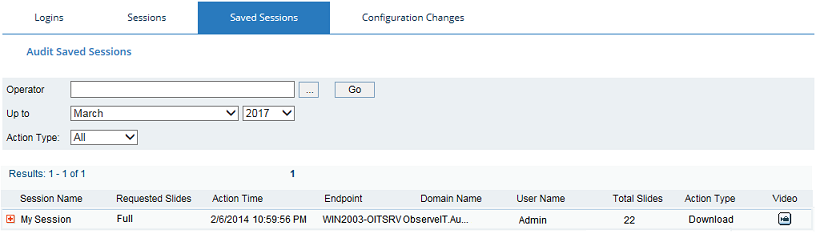
For each audit entry, the AuditSaved Sessions list displays the following details:
-
Session Name: The name of the saved session. You can click the
 icon next to Session Name to see the window title name of the slides.
 -
Requested Slides: When a recorded session is saved, users can specify the slides that they want to include: the entire recording, specific slides, or a range of slides. Full means that all slides in the session were saved.
-
Action Time: The date and time that the session was saved.
-
Endpoint: The name of the server on which the session was saved.
-
Domain Name: The domain name (if the Console User is configured with an external Active Directory or LDAP domain).
-
User Name: The Console User that accessed the Web Console.
-
Total Slides: The actual number of slides in the saved session.
-
Action Type: The audit action that was detected. Options are:
-
Download: The user downloaded the saved session.
-
Delete: The user deleted the saved session.
-
Video
 icon: Click to replay the session. When Session Replay Privacy Protection is enabled, a lock icon appears next to the Video icon. When clicking the Video icon, users will be prompted to enter their Replay Privacy Protection password. For further details, see Securing the Privacy of Session Replay.
-
-
You can click
 to expand a session to view more details.
 -
You can filter the display of the Audit Saved Sessions list according to the following search criteria: Operator (Console User name), date (Up To), and Action Type (All, Download, Delete).